
How can I engage in remote work using a remote desktop?
Remote work through a remote desktop involves connecting to your office computer or a distant server from your home computer. This enables you to utilize the resources and applications on your work computer while enjoying the flexibility of working from home.
Must Read:How to Permanently Delete Your Instagram Account
What essentials do you require for remote work with a remote desktop?
You’ll need remote access software, and the market offers various options catering to your specific needs, preferences, and compatibility with your work environment. Among the top choices is AnyViewer, a highly regarded remote access tool for efficient remote work.
AnyViewer: Best Remote Access Tool For Work Free
Regarded as an outstanding remote access tool for work PCs, AnyViewer facilitates seamless direct connections over the expansive realm of the internet. Its notable feature lies in its elegant simplicity, eradicating the necessity for intricate network configurations, VPNs, or port forwarding. A swift and trouble-free download and installation process guarantees a prompt transition to productive usage.
Click HERE to get AnyViewer for your Pc
What Kind of Features does AnyViewer have?
Before delving into the practical application of AnyViewer, it’s crucial to examine the diverse features that distinguish it as the premier remote desktop software for remote work. AnyViewer presents a wide range of functionalities meticulously designed to elevate the remote work experience. Let’s explore the myriad offerings of this versatile tool:
Features designed for remote work:
- Unattended access: Empowering users to remotely access their unattended work computer without requiring explicit permission, ensuring efficiency.
- Effortless file transfer: Seamlessly shuttle files between your office and home computer using an intuitive file manager or the simplicity of drag-and-drop functionality.
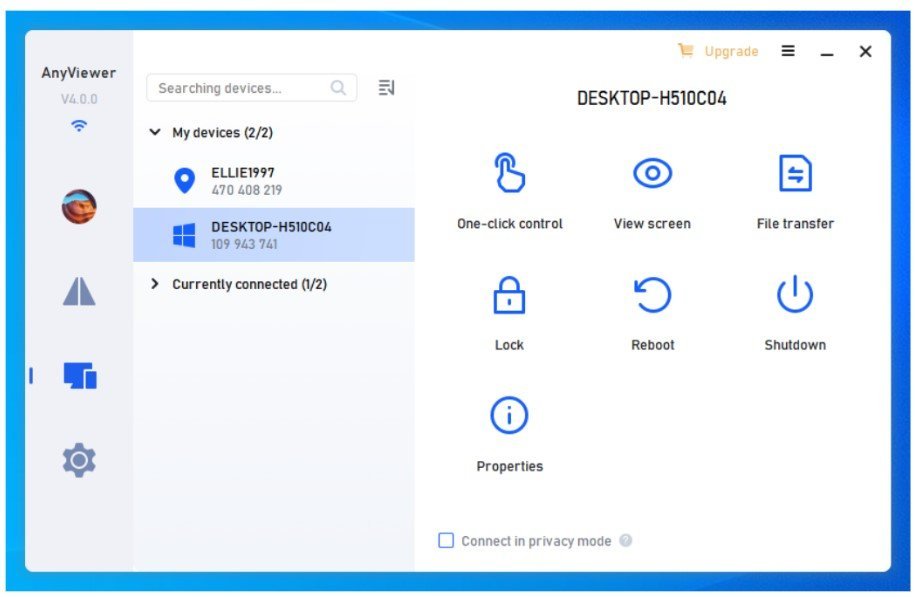
- Remote management: Gain comprehensive control over your work computer with the ability to remotely lock, reboot, or shut it down effortlessly, all executed with a single click from your home computer.
- Multi-monitor switch: Enjoy the flexibility of seamlessly toggling between an all-monitor display and a one-monitor setup, a valuable feature when connected to an office computer equipped with multiple monitors.
- Remote sound: Effortlessly synchronize the voice of your work computer to enhance the remote work experience.
- iOS/Android device support: AnyViewer extends its support to iOS and Android devices, enabling you to remotely access work computer from mobile devices, ensuring that work is accessible no matter where you are.
Features designed for remote teamwork:
- Multi-session handling: Ideal for IT professionals and multitaskers, AnyViewer allows you to access multiple work computers simultaneously, streamlining your remote operations.
- Screen sharing: Foster efficient collaboration by gaining the ability to view your remote computer’s screen or share your own screen with the remote computer, facilitating effective communication and teamwork.
- Real-time communication: Communicate in real-time with the remote computer, whether it’s sending text messages or engaging in chat conversations via a convenient chat box.
How To Use AnyViewer For Remote Work
Let’s look at how to remote access to work PC from home with AnyViewer. The pathway is straightforward and can be navigated as follows:
Part 1. Advance configuration on the work computer:
Step 1. Procure, install, and launch AnyViewer on your work computer.
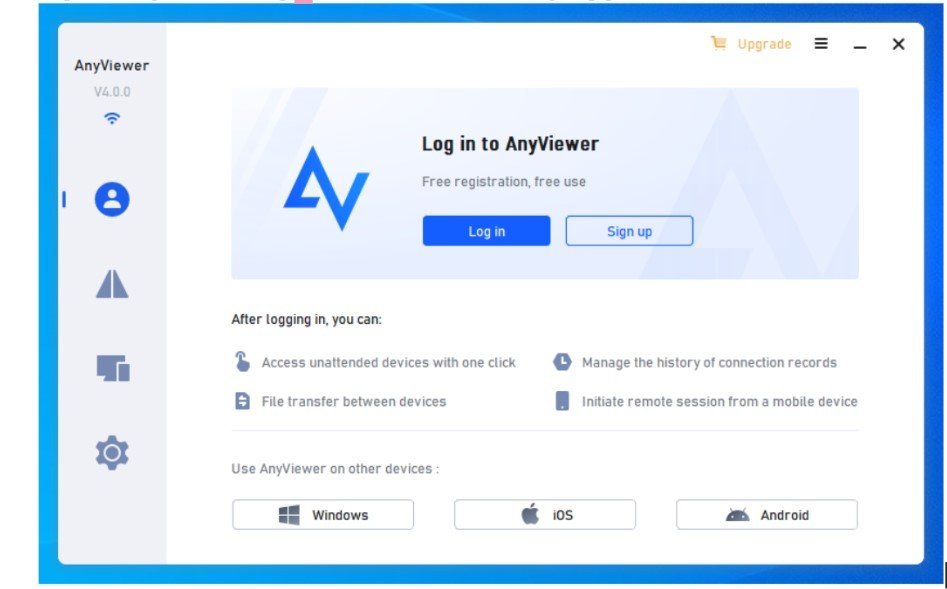
Step 2. Navigate to the Log in section and initiate the sign-up process

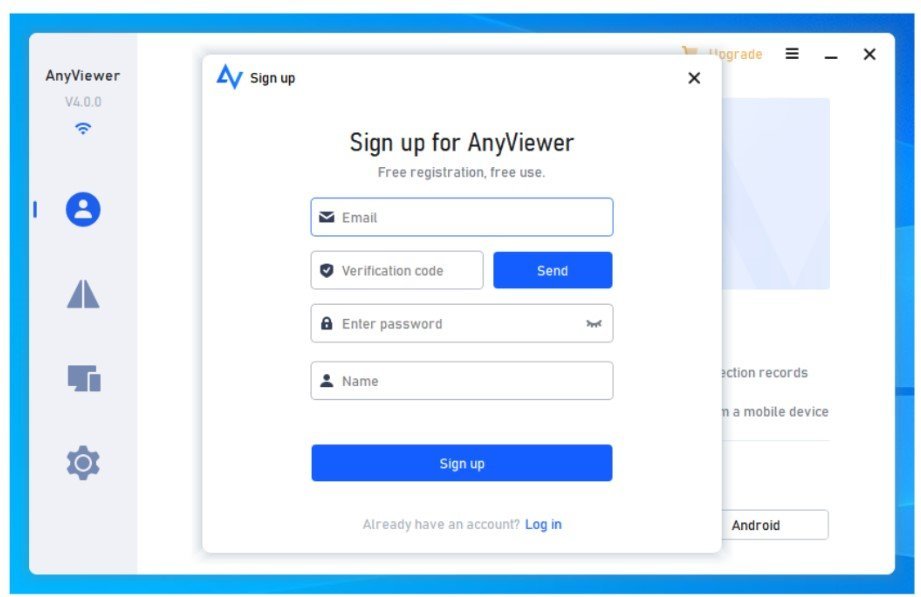
Step 3. Furnish the requisite sign-up details and execute the Sign up command.

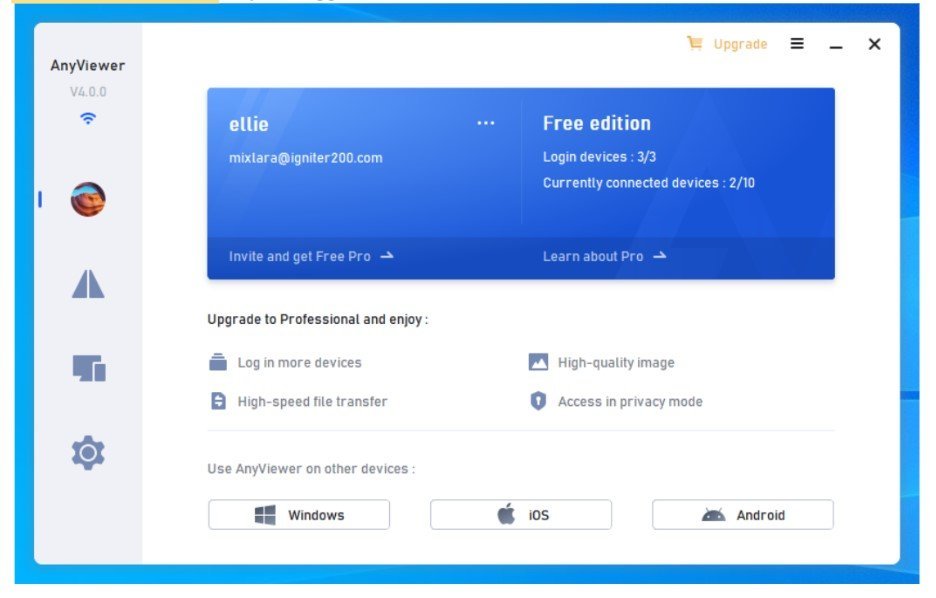
Step 4. Congrats, you’re now logged into AnyViewer. Head to the Device tab, where your device is automatically linked to your logged-in account.

Part 2. Remote access to work PC from home computer:
Step 1. On your home computer, download, install, and launch AnyViewer. Log in using the same account you employed on the work computer.
Step 2. Access the Device tab, select the work computer, and trigger unattended remote access via the One-click control function. Alternatively, harness the File transfer option for seamless inter-computer file sharing
Note: It is recommended to upgrade to AnyViewer’s professional or enterprise plan for:
- Advanced device control: Optimize management of more unattended access devices.
- Seamless multi-session: Effortlessly handle more remote sessions at the same time.
- Faster file transfer: Move large files at a faster speed.
- Privacy mode: Access the remote device while blacking its screen and disabling the keyboard for privacy and safety.
- … and more.
Conclusion
In the evolving world of remote work, the selection of your remote access tool holds significant importance. AnyViewer emerges as a top-tier remote access solution for work, distinguished by its simplicity and efficacy, enabling you to work effortlessly from the comfort of your home or any location. Embrace the future of remote work with AnyViewer and open the door to unparalleled productivity and collaboration.